


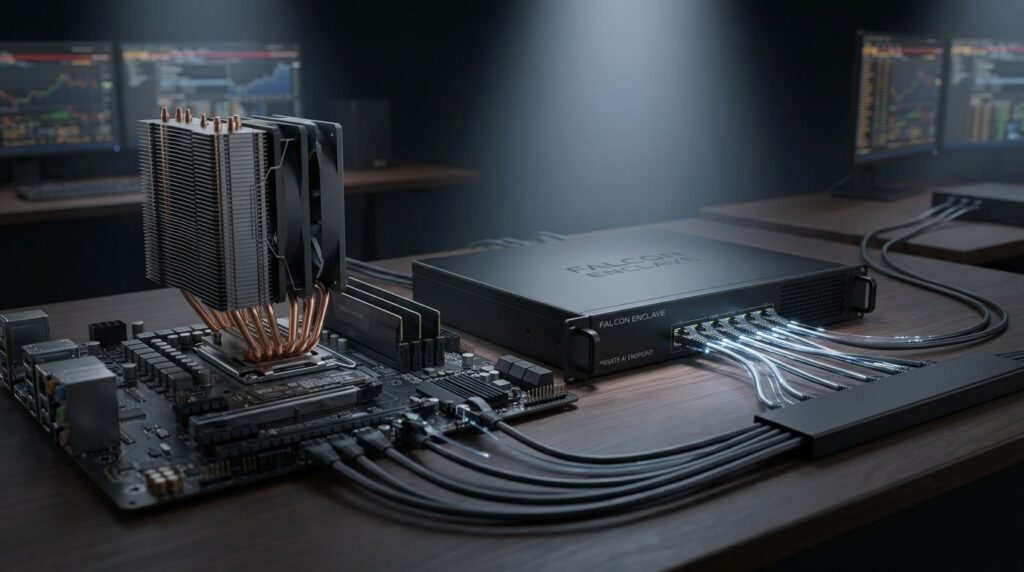
A Falcon AI Enclave is built to serve more than one desk. Pairing is what connects a specific trading system’s Falcon Terminal to it: a few minutes of setup, done once per trading system, entirely inside Falcon Terminal itself.
This walks through that setup from a trading system that already has Falcon Terminal running, on the same local network as an Enclave that is already powered on and connected.
Before you start
The Enclave needs to already be on your network. For most installs that means one Ethernet cable: plug it in and it takes an address on the network on its own. If you are standing up a brand-new Enclave for the first time rather than pairing a trading system to one that is already running, that is a separate one-time step, not part of this walkthrough.
You will also want to know who holds the Enclave’s own Admin Key. Whoever installed the Enclave has it, generated during setup, and either they or Falcon Terminal itself supplies it during pairing.
One real limitation worth knowing up front: pairing currently works on the same local network only. A trading system on a different network segment, at home or on a separate office VLAN, cannot pair with an Enclave yet.
Step 1: Open Connection Settings
In Falcon Terminal, open Connection Settings and click “Show Enclave user management.” This expands the Enclave Users card, where every remaining step happens.
Step 2: Point Falcon Terminal at your Enclave
There are two ways this goes, and both are normal, not a primary path and a fallback:
Falcon Terminal finds it for you. If your Enclave is broadcasting itself on the network and has not been claimed yet, it appears under Discovered on this network. Click it, and the Admin address and Admin key fields fill in on their own.
You enter it yourself. If nothing appears in that list, type the Enclave’s address into Admin address and paste the Admin key into Admin key. Some office networks (segmented Wi-Fi, separate VLANs) do not allow the local discovery this depends on, so entering both directly is a fully supported path, not a workaround.
Click Verify. A Verified status confirms Falcon Terminal can actually reach the Enclave and the key is valid. A rejected key shows a specific message rather than a generic failure, and the fix is simply re-checking what was typed.
Step 3: Create an account on the Enclave
Once verified, add a user for anyone, yourself included, who needs their own connection: a name, then create.
Falcon Terminal shows that person’s new access key exactly once. Copy it immediately. There is no way to view it again later, and losing it means recreating the account rather than recovering the old key.
Step 4: Connect your own Falcon Terminal
If the account just created is for the machine being set up right now, click “Use this key for my own connection.” Falcon Terminal writes that key into its own configuration as the Enclave connection immediately.
Step 5: Restart to apply it
Falcon Terminal says this directly rather than leaving it implied: the local server that actually talks to the Enclave does not pick up a new connection until it restarts. Restart it, and requests from this trading system now route to the Enclave.
Repeat per trading system
Each additional trading system needs its own account (Step 3) and its own restart (Step 5). None of it requires touching the Enclave itself again once it is on the network. Whoever holds the Admin Key can create every account from any one Falcon Terminal that has verified access; each person then uses their own key on their own machine.
What to know before you rely on this
Local network only, for now. A trading system that is not on the same network as the Enclave has no supported pairing path yet.
Traffic between a paired trading system and the Enclave is not encrypted on the local network in this version. For most offices behind a normal firewall this is a reasonable tradeoff for the setup’s simplicity; if a specific network security policy requires encryption in transit, ask us before relying on this over an untrusted network segment.
Losing an access key means recreating that user’s account, not recovering the old key. There is no rotate-or-reset option per user yet, so the one-time key display is the only chance to save it somewhere safe.
The Enclave’s own Admin Key can create or remove every user’s access on that Enclave. Treat it the way a master password gets treated, not something to hand out casually.
FAQ
Do I need a separate app to pair my trading system with the Enclave?
No. Everything happens inside Falcon Terminal’s own Connection Settings. There is no separate pairing app and nothing additional to install on the trading system.
What if my Enclave does not show up under "Discovered on this network"?
Enter its Admin address and Admin key directly in the same panel. This is a fully supported path, not just a fallback: some networks, particularly segmented office Wi-Fi or separate VLANs, do not allow the local discovery this depends on.
Can I pair a trading system that is on a different network than the Enclave, like a laptop at home?
Not yet. Pairing currently requires both the Enclave and the trading system to be on the same local network.
What happens if I lose a user's access key?
There is no way to view or reset it. Remove that user and create a new one, then update that trading system’s connection with the newly issued key.
Does pairing change what Falcon Terminal does when the Enclave is unreachable?
No. Falcon Terminal’s local model keeps working with no connection at all. The Enclave connection is an additional option for larger models, not a replacement for local operation. —
Need Help Pairing Yours?
Or call 1-800-557-7142 (a real conversation with a technician, not a form).


